The calendar gathers every stay across all your trips into one place, so you can see your whole season at a glance instead of opening each trip one by one.
On the web
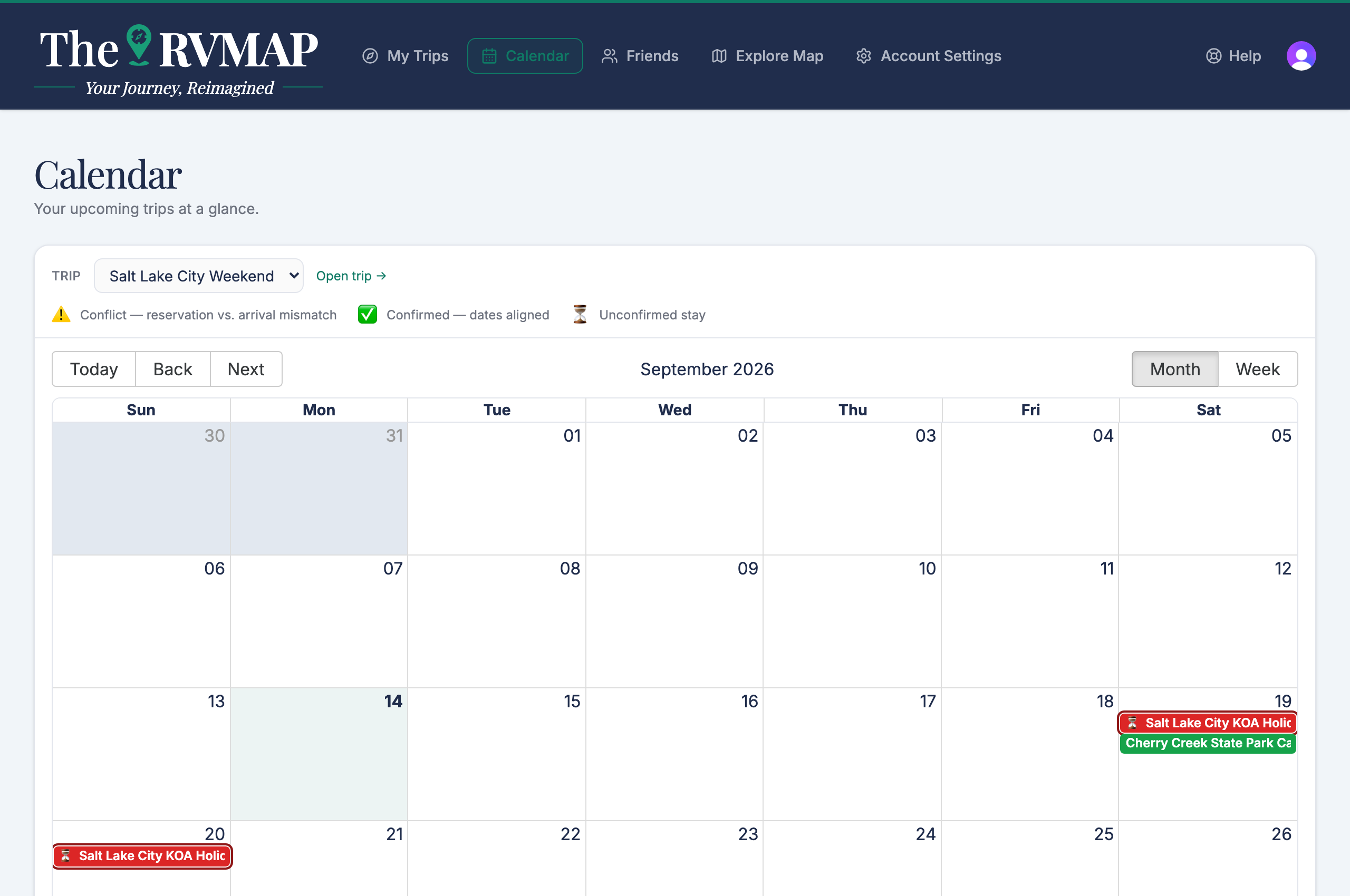
You can look at your stays on a Month or a Week view. A trip selector at the top starts on All trips with a count. Pick a single trip and an Open trip link appears next to the selector to jump straight into it.
Each stay is drawn in the colour you gave that stop. When several trips are shown together, a colour legend labelled Trips appears; click any trip in it to narrow the calendar down to just that one.
Reading the markers
Three little marks tell you where each reserved stay stands:
- A warning sign flags a Conflict, where the reservation date and the day your route actually reaches the stop disagree.
- A tick means the dates are Confirmed and line up.
- An hourglass means the stay is Unconfirmed.
Overnight stops carry their own mark too, so an auto-planned Overnight reads differently from a booked stay.
In the app
The phone shows a month grid with a dot on any day that has a stay, and a list of that day's stays underneath when you tap a date. The trip selector reads All Trips, and choosing one trip gives you a link to open it.
The phone has no legend and no colour key, so if you want the full picture of conflicts and confirmations, open the calendar on the web.
Related
- Changing dates from the calendar
- Putting your trips in your own calendar
- Setting nights, arrival and check-in dates
Was this article helpful?
That’s Great!
Thank you for your feedback
Sorry! We couldn't be helpful
Thank you for your feedback
Feedback sent
We appreciate your effort and will try to fix the article