Once the app is installed, you sign in with the account you made from your invitation email. Here is how, start to finish.
Create your account first
Before you open the app, create your account from the link in your beta invitation email, right on your phone. Installing the app is covered in its own article.
Open the app and tap Sign in
- Open TheRVMAP. During the beta the first screen shows the logo, a Sign in button, and a text link, Don't have an account? Apply for the beta.
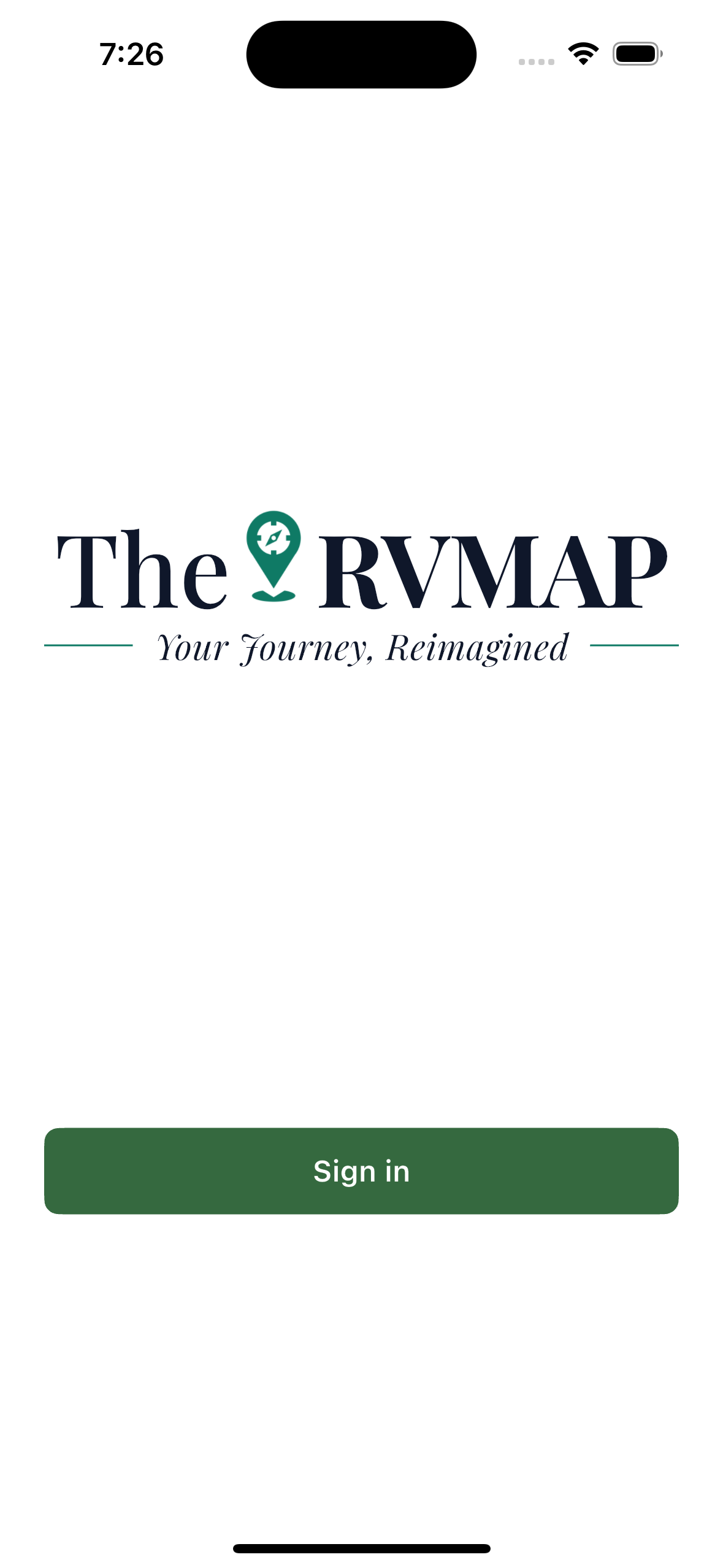
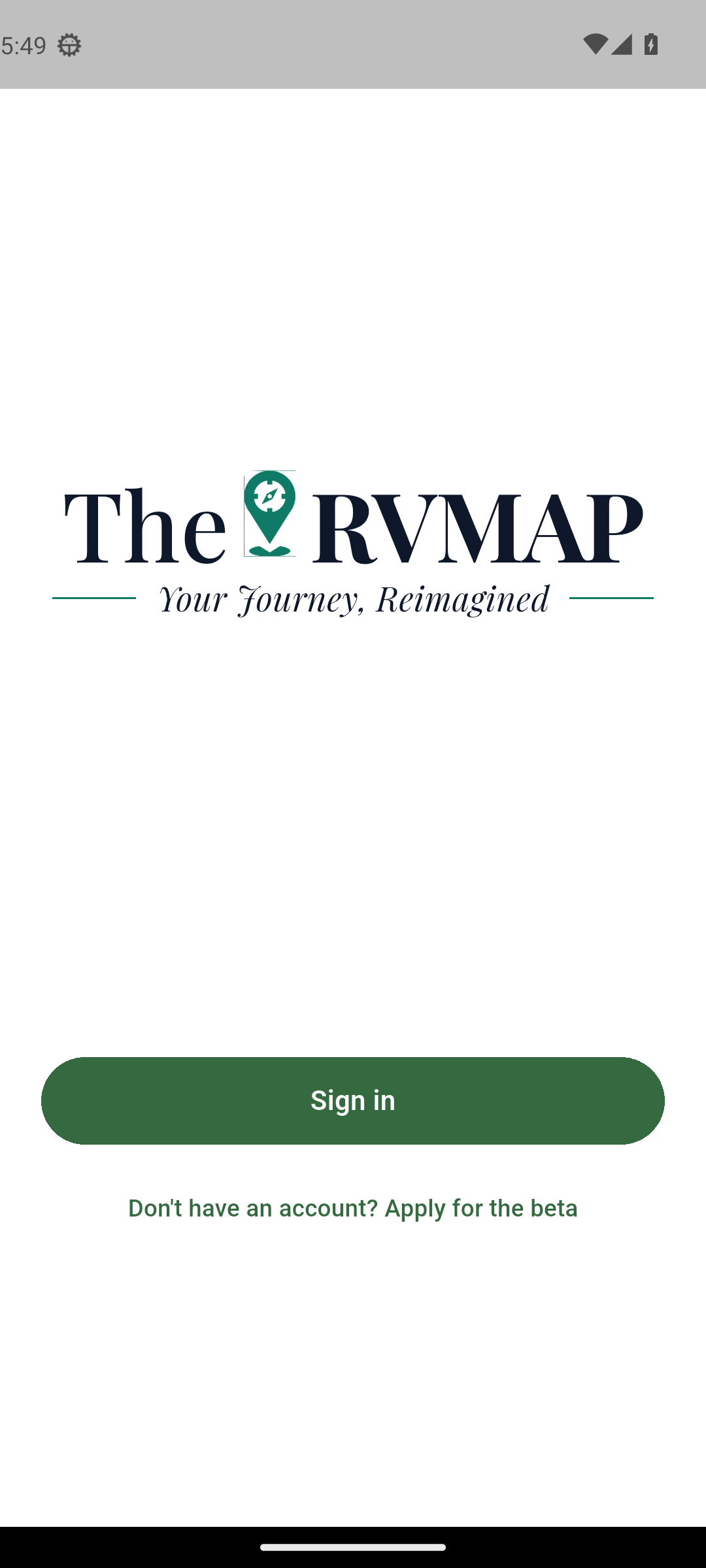
- Tap Sign in.
When the beta ends, a Create account button appears here in place of the apply link.
The sign-in form
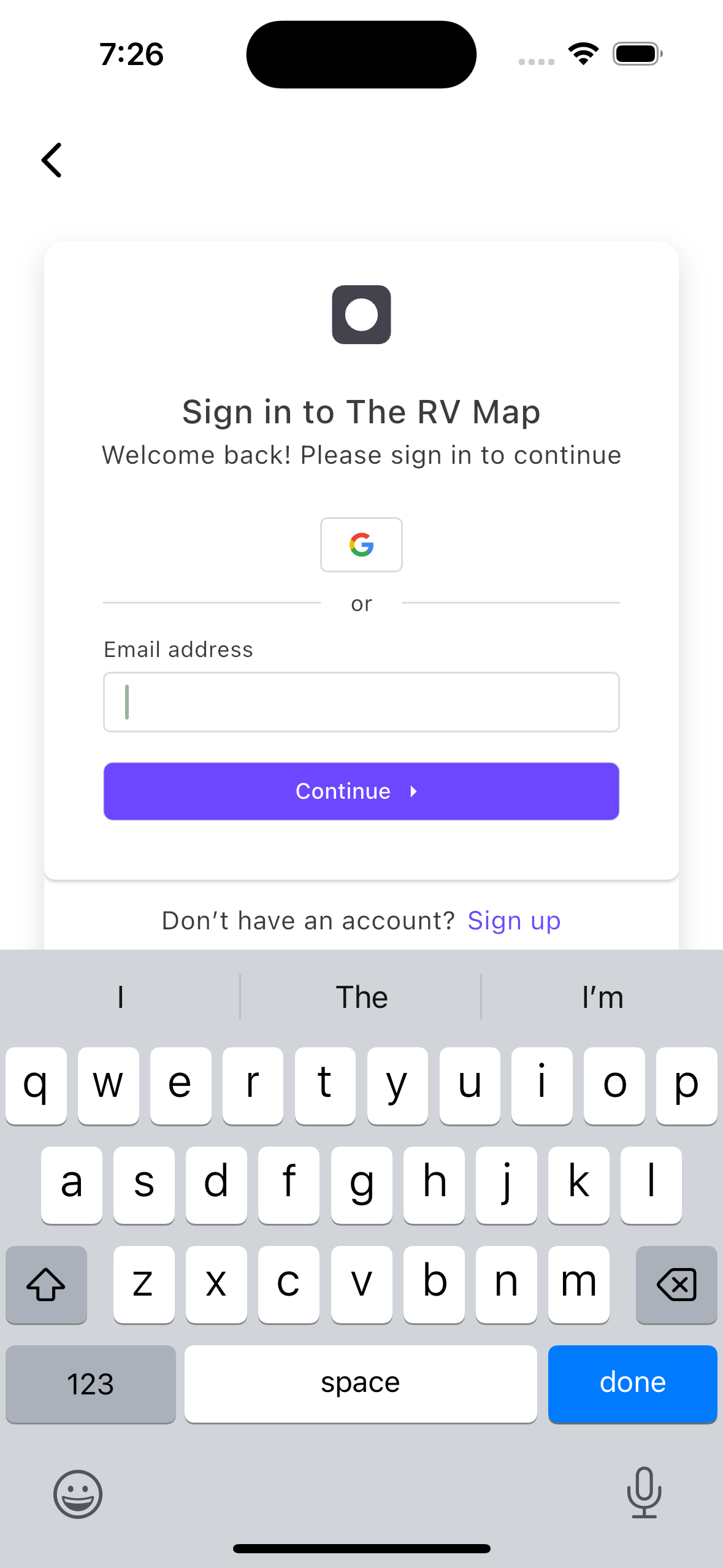
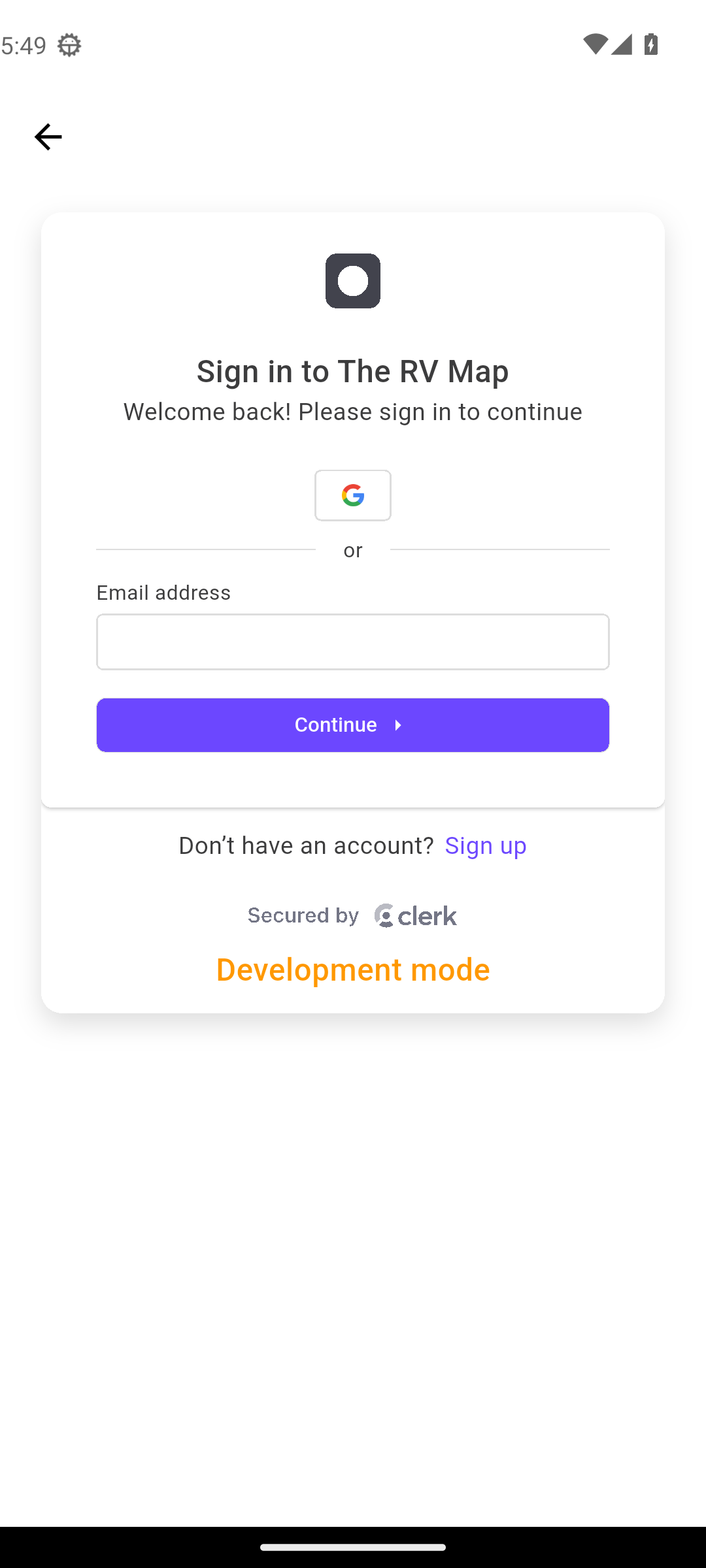
The sign-in form opens. Enter the email address you applied with and your password.
If you have the app but no account yet
During the beta you cannot create an account in the app; sign-up happens on the website.
- On the first screen, tap Don't have an account? Apply for the beta. It opens the beta application page on thervmap.com.
- Apply on the website, then wait for your invitation email.
- When it arrives, open its link and create your account on the web, right on your phone.
- Come back to the app and tap Sign in.
Right after you sign in
The app does a quick check of your account, then opens to the Home tab. This takes a moment.
If something goes wrong
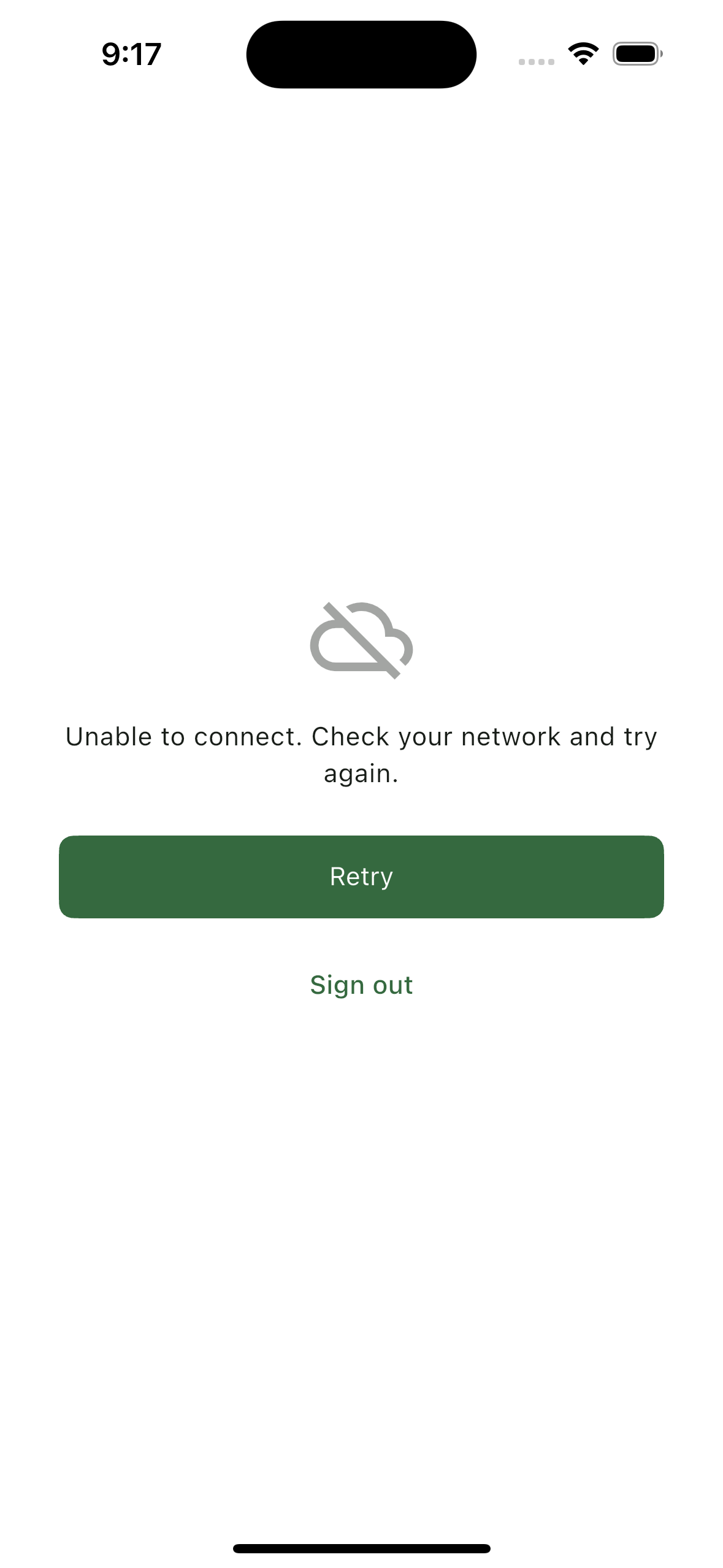
- If the app cannot finish checking your account, for example because you have no internet connection, you see a screen with Retry and Sign out rather than a blank page. Tap Retry to try again.
Signing out
Sign out from the bottom of the More tab.
Pro is included during the beta, so there is no payment step.
Related
- Installing the app from your invitation
- A tour of the app: the six tabs
- Getting help
Was this article helpful?
That’s Great!
Thank you for your feedback
Sorry! We couldn't be helpful
Thank you for your feedback
Feedback sent
We appreciate your effort and will try to fix the article