Sometimes a trip grows a leg. Extending adds a new final destination and keeps everything you already planned.
How to extend
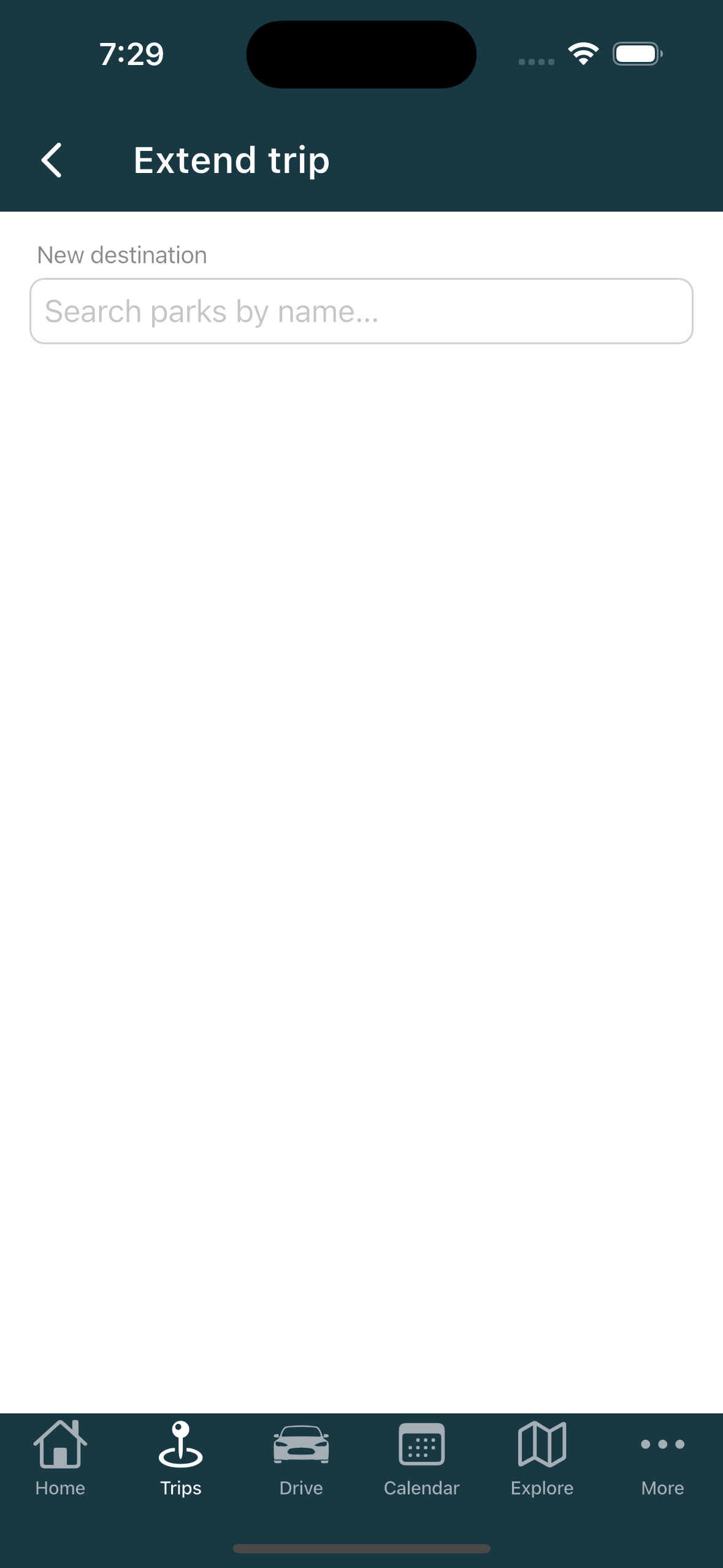
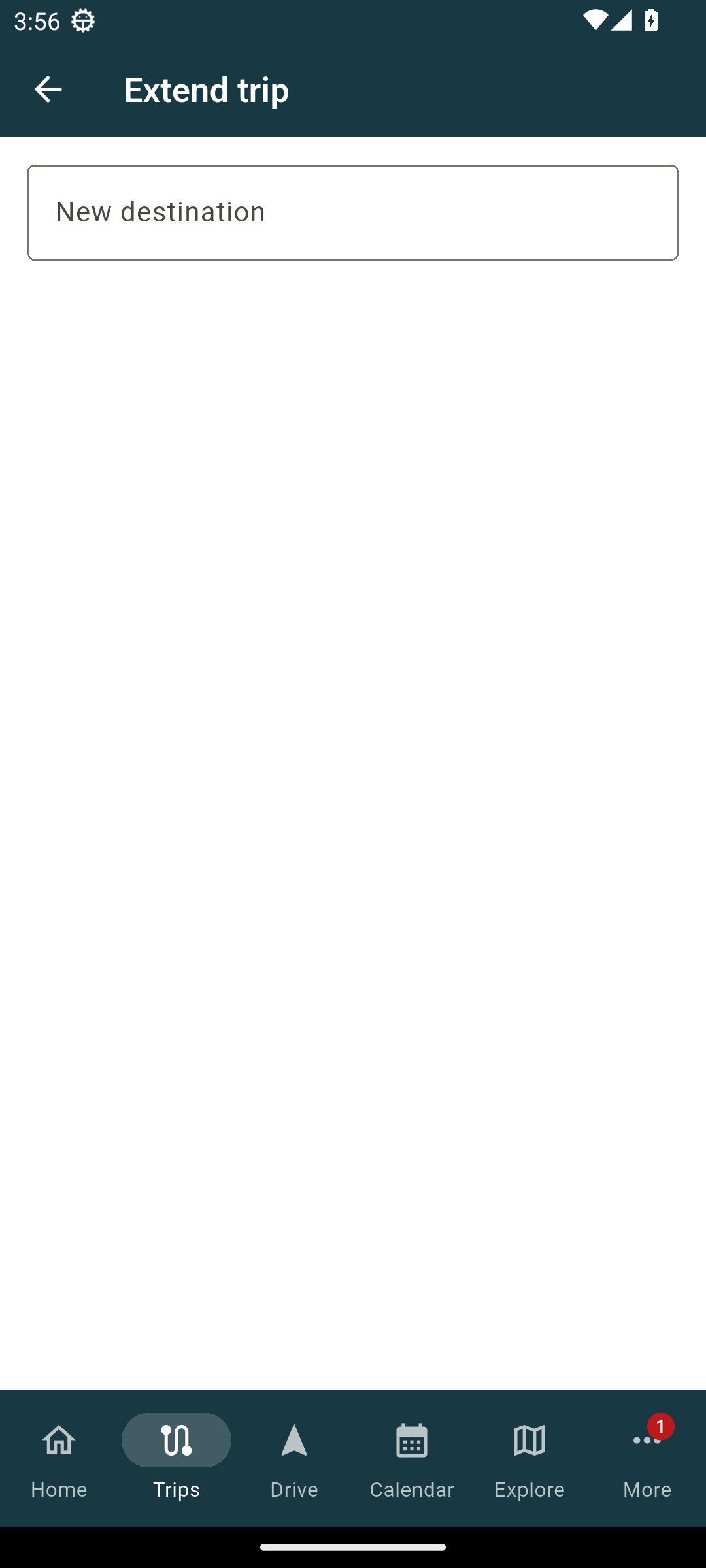
On the web, open the menu on your destination stop and choose Extend this trip. In the app, open the Extend trip screen and use the New destination search to pick where you are heading next.
What happens to your trip
Your old destination does not disappear. It stays in the trip and becomes an ordinary overnight stop along the way, and the new place you chose is added at the end as the new destination.
Only the fresh stretch, from the old destination to the new one, gets suggested overnights, and those arrive unresolved so you can pick the ones you want. The stops you already settled on earlier legs are left exactly as they were.
Extending while you are on the road
You can extend a trip you have already started driving. Nothing about a trip locks because you have driven part of it, so you can add a new leg while you are out on the road.
Changing your origin or destination
From the same stop menus you can also swap an origin or a destination for a different park or address. The planner reworks the affected part of the route around the change.
Related
- Adding and arranging stops
- Setting nights, arrival and check-in dates
- Archiving a trip, Driving now and Last active
- Choosing between route options
Was this article helpful?
That’s Great!
Thank you for your feedback
Sorry! We couldn't be helpful
Thank you for your feedback
Feedback sent
We appreciate your effort and will try to fix the article