Run the same loop again next spring, or try a variation without disturbing a plan you like. Cloning makes a second trip from one you have.
On the web
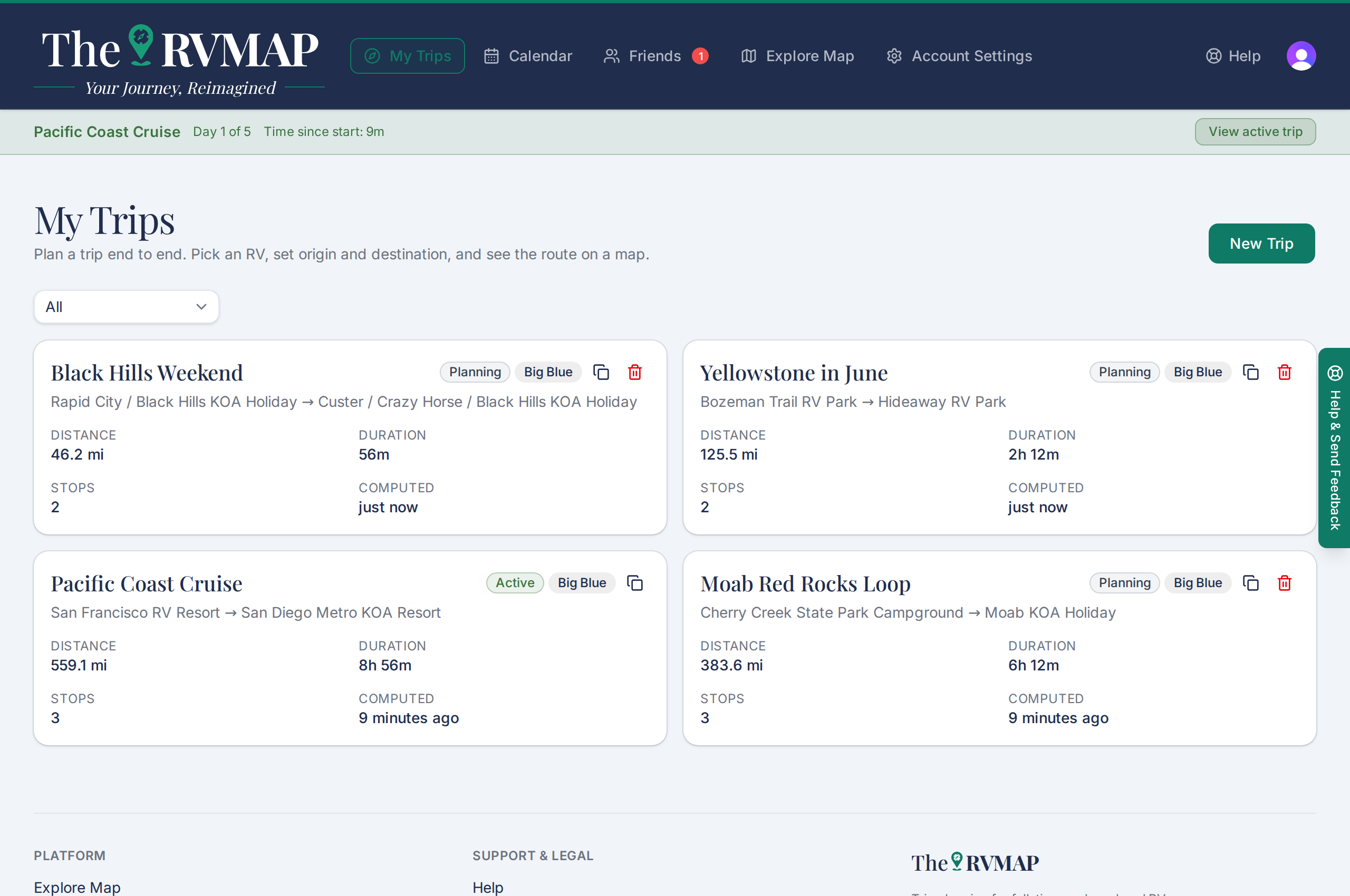
- Open My Trips, or open the trip itself.
- On a trip card, use the clone button next to the trash button. On a trip's own page, use Clone trip in the actions at the top.
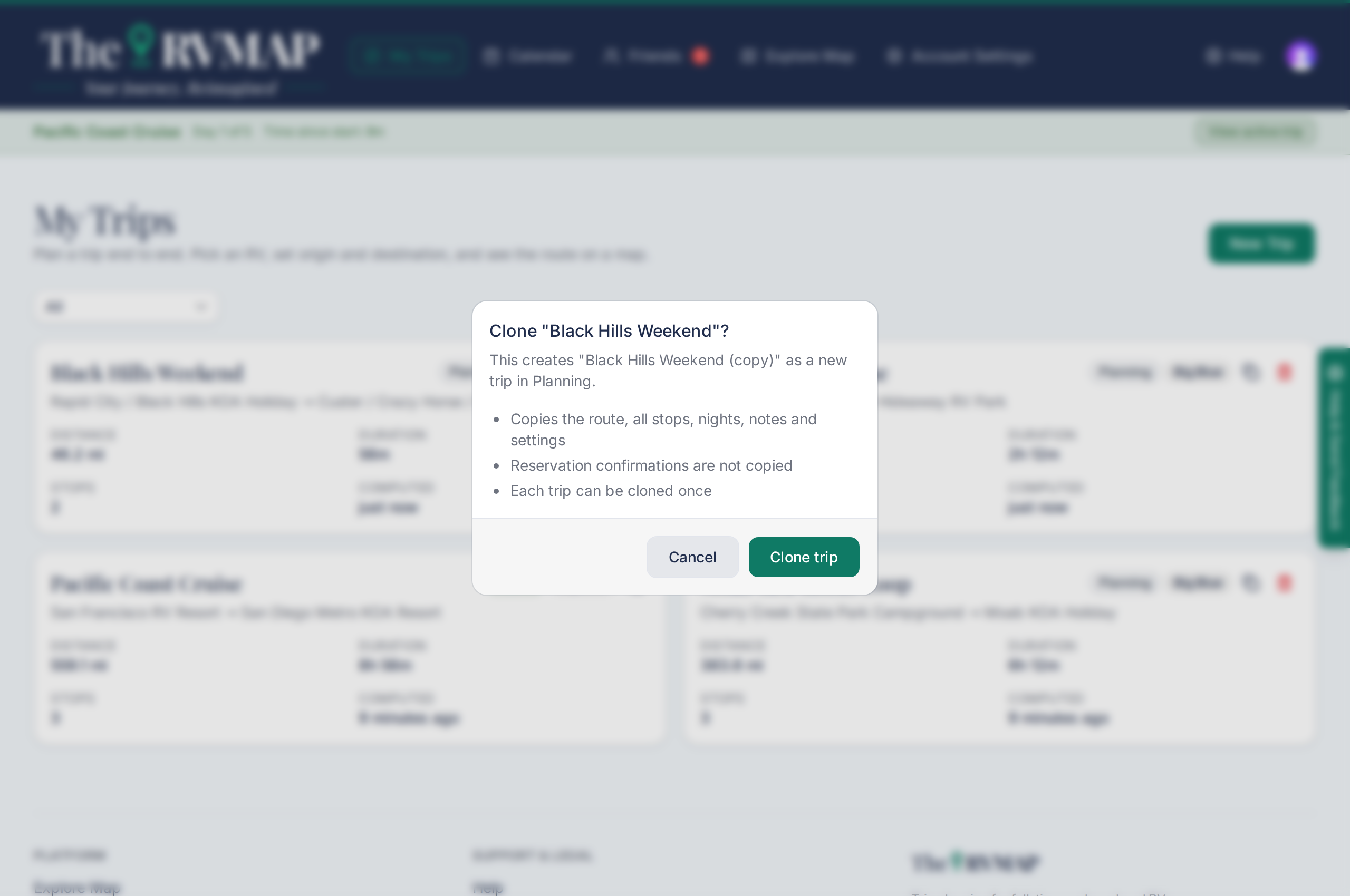
- Read what the dialog tells you, then choose Clone trip.
In the app
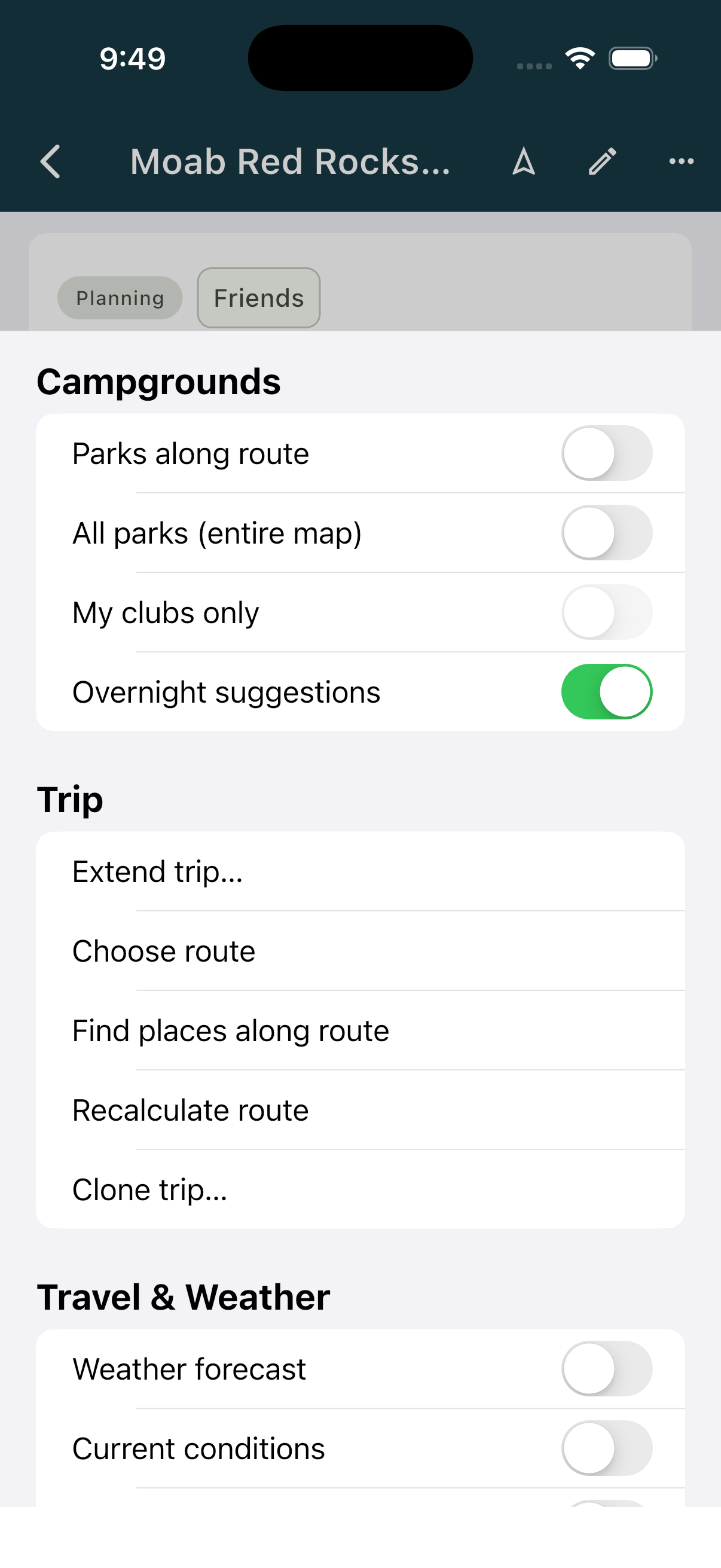
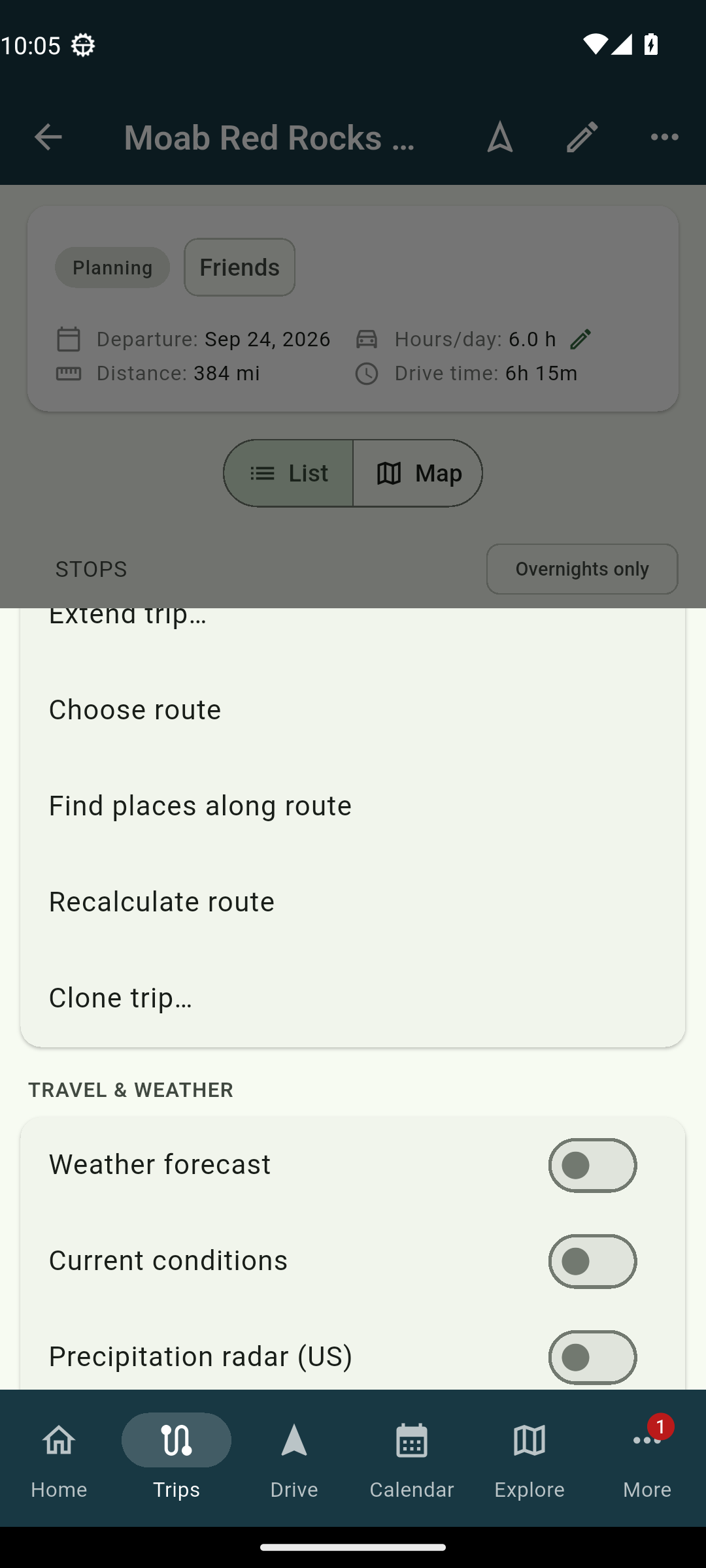
- Open the trip, then open the Layers and tools sheet from its toolbar.
- In the Trip section, tap Clone trip… and confirm.
What you get
Either way, the new trip opens as soon as it is made, with a Trip cloned note at the top on the web.
The copy carries the route, every stop, the nights, your notes, and the trip's settings: the rig, your hours per day, and your toll and unpaved-road preferences.
Reservation confirmations do not come across. Those belong to the plan you actually booked, so the copy starts with its check-in dates clear.
The copy takes the original's name with "(copy)" on the end, and starts in Planning whatever status the original was in. Rename it whenever you like.
The rules worth knowing
- Cloning a trip is part of the Pro plan. During the public beta, Pro is included for everyone.
- Each trip can be cloned once. The button says so once a copy exists. Delete the copy and you can clone that trip again.
- A copy can itself be cloned once, so you can build a chain of variations.
- You can only clone your own trips. A trip a friend shared with you is read-only.
- The copy counts as one of the trips you create this year.
One path is open on every plan: a trip locked because it belongs to an earlier year can always be cloned, so last season's route can come forward into this one.
Related
- How many trips and stops your plan allows
- Creating a trip
- Extending a trip
- What the trip statuses mean
Was this article helpful?
That’s Great!
Thank you for your feedback
Sorry! We couldn't be helpful
Thank you for your feedback
Feedback sent
We appreciate your effort and will try to fix the article