Your trip is an ordered list of stops between where you start and where you finish. You can drag any stop to a new spot in the list, on the web and in the app, and the route rebuilds around the new order.
Three kinds of stop
A stop can be a place you sleep, a place you pull in without staying the night, or a point that only shapes the route without being somewhere you visit. Each behaves a little differently, but they all sit in the same list.
When you add a place, three buttons decide which kind of stop it becomes:
- Overnight makes it a place you sleep, and your route goes there.
- Add to route sends your route through the place without a night's stay.
- Add stop here drops a marker only: your route does not change and does not go there.
A marker that sits well away from your route says so on its card, with how far off the route it is, and offers Add to route. Use it when you meant to drive there, then choose Recalculate route.
Reordering
Drag a stop by its handle to move it earlier or later in the trip. The list is the order you will travel in.
The per-stop menu
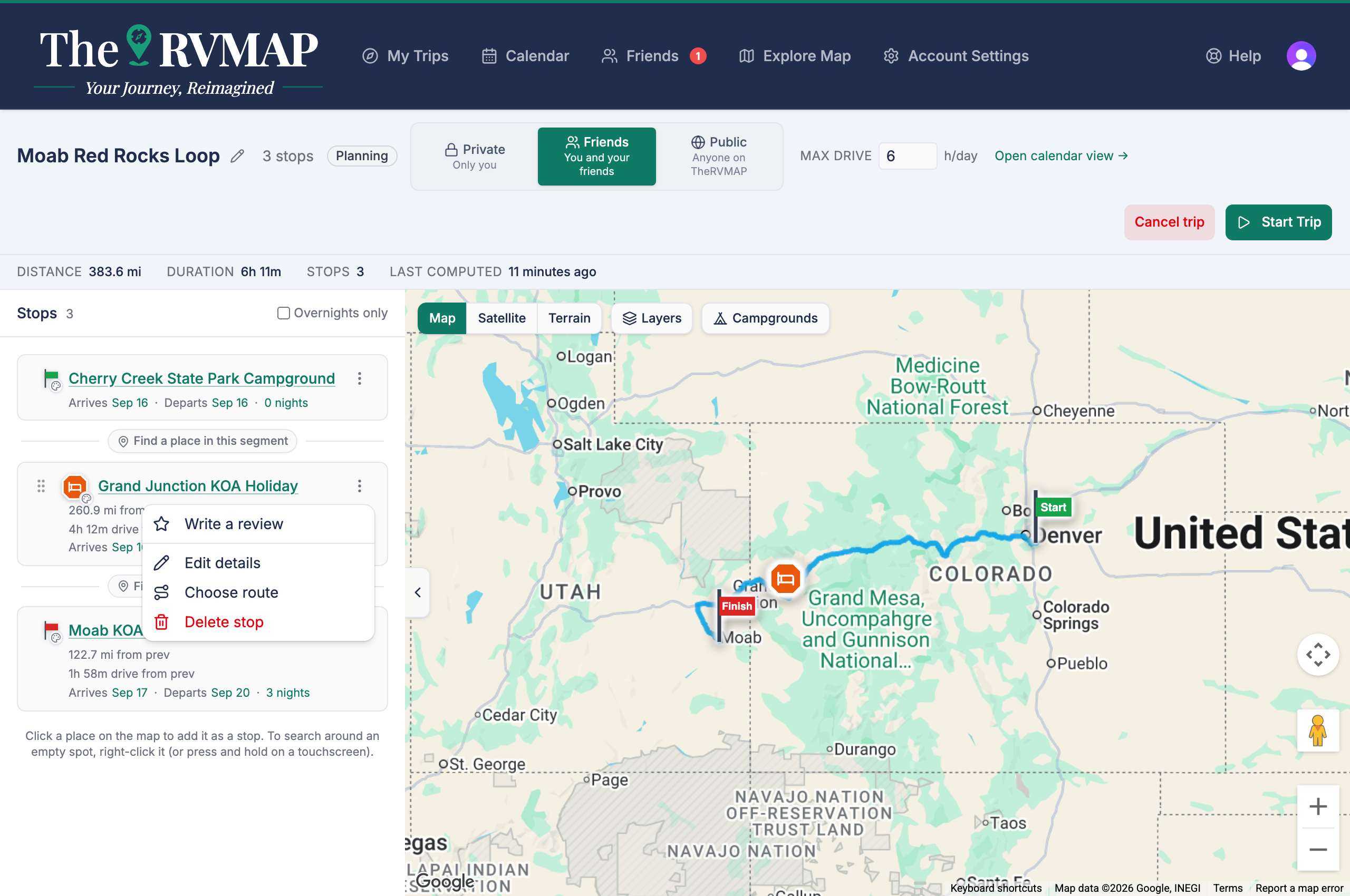
On the web, each stop has a menu with Edit stop, Edit details, Stop color, Delete stop, Remove campground, and Find a place in this segment. On the last stop only, the menu also offers Extend this trip.
Showing only your overnights
An Overnights only toggle narrows the list to the places you are sleeping. The planner may add overnights for you, and those hidden automatic ones can be unhidden when you want to see everything.
Giving a stop a colour
Each stop can take a colour from a picker. The colour is how you recognise the same stop across the map and the calendar, so a stop you tag blue on the list shows blue everywhere else.
Related
- Creating a trip
- Setting nights, arrival and check-in dates
- Extending a trip
- Archiving a trip, Driving now and Last active
- Where the planner suggests you sleep, and how to pick the park
- Finding campgrounds and places along your route
Was this article helpful?
That’s Great!
Thank you for your feedback
Sorry! We couldn't be helpful
Thank you for your feedback
Feedback sent
We appreciate your effort and will try to fix the article