When a plan changes on the road, you can drop a new stop into the drive you are already on.
Drive mode is part of the Basic plan or higher; without a subscription you'll see a card that reads "Turn-by-turn RV-safe navigation requires a Basic subscription or higher" with a See plans button. During the public beta, Pro is included for everyone, so drive mode is available.
Open Add a stop
A separate search button sits at the lower right of the drive screen. It opens Add a stop, with the field "Search a name or address", a microphone, chips for Gas and Restrooms, and a Recent list of places you picked before on this device.
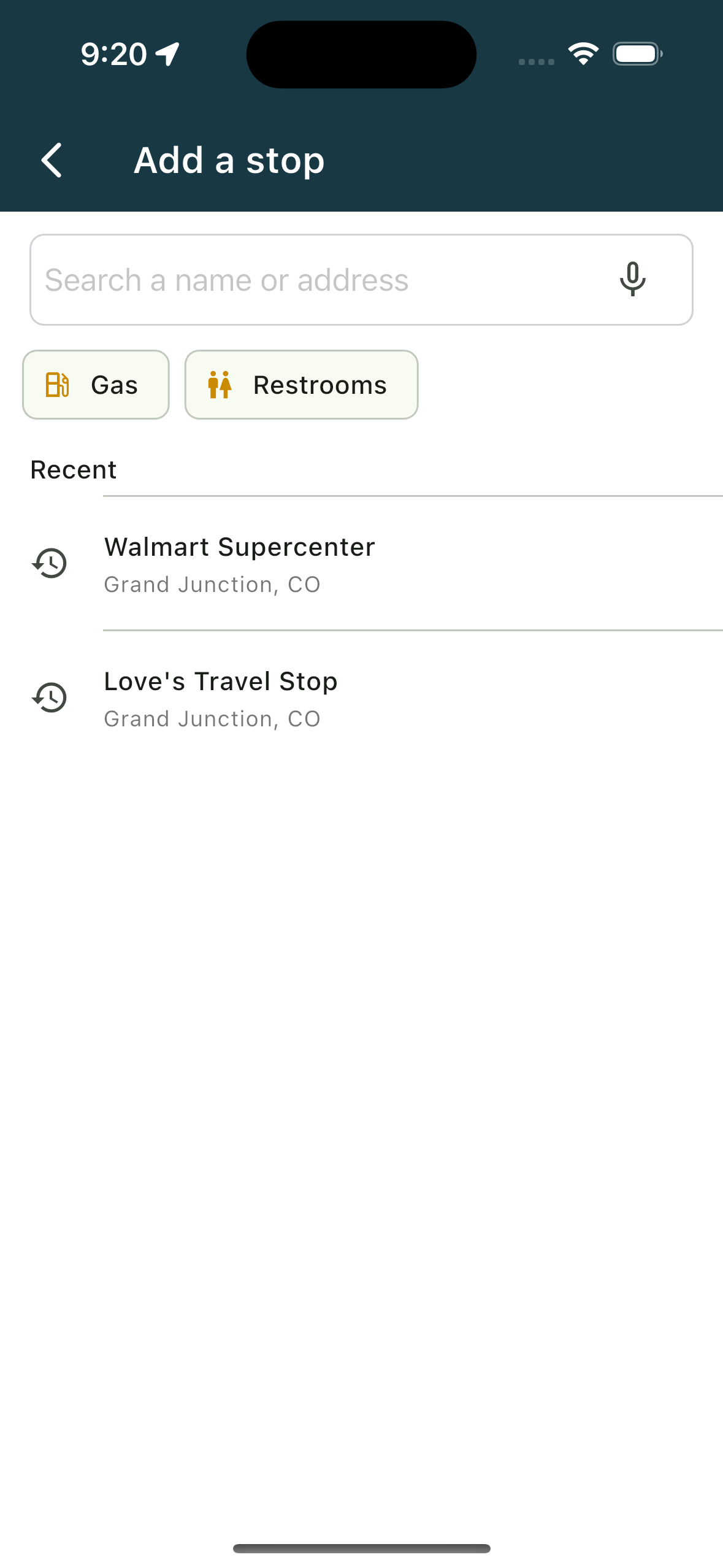
Tapping a chip closes the screen and runs the same ahead-on-route search as the quick-picks rail.
Choose what to do with a place
When you choose a place, it asks Navigate to that place and offers three choices:
- Add as a stop inserts the place into the drive you are on.
- New drive abandons this drive and starts fresh to that place.
- Cancel goes back with no change.
Typing while you are moving
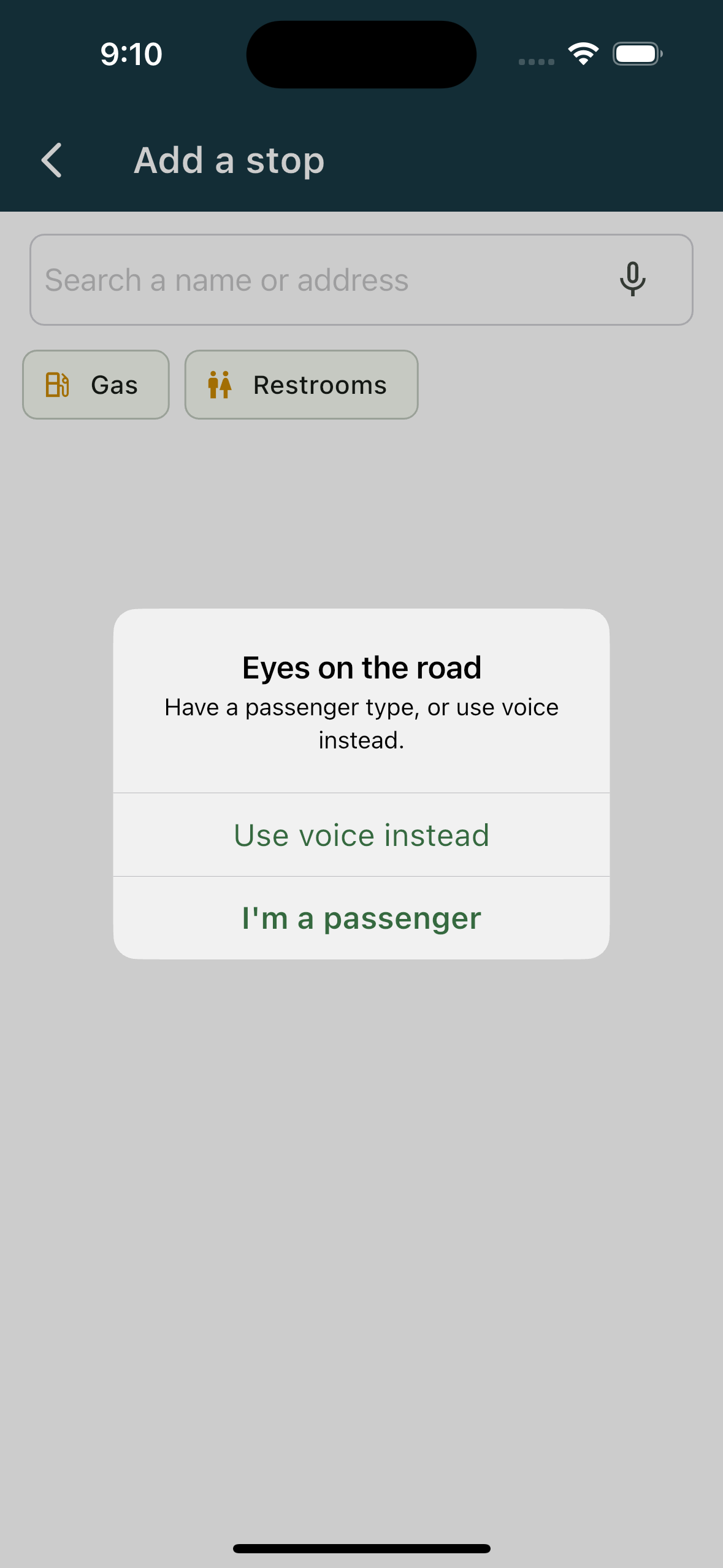
Above about 10 miles an hour, bringing up the keyboard asks once: Eyes on the road, "Have a passenger type, or use voice instead", with Use voice instead and I'm a passenger. Choosing I'm a passenger is remembered for the rest of that drive. Voice and taps are never gated, so a chip, a recent place or a spoken search always works while you roll.
Related
- Finding a restroom or fuel ahead
- Using your voice while driving
- Reading the drive screen
- Starting a drive
Was this article helpful?
That’s Great!
Thank you for your feedback
Sorry! We couldn't be helpful
Thank you for your feedback
Feedback sent
We appreciate your effort and will try to fix the article