The Explore Map is where you wander the whole catalogue of RV parks, pan and zoom anywhere, and see what is around. It works on both the web and the app, with a few controls in different places.
On the web
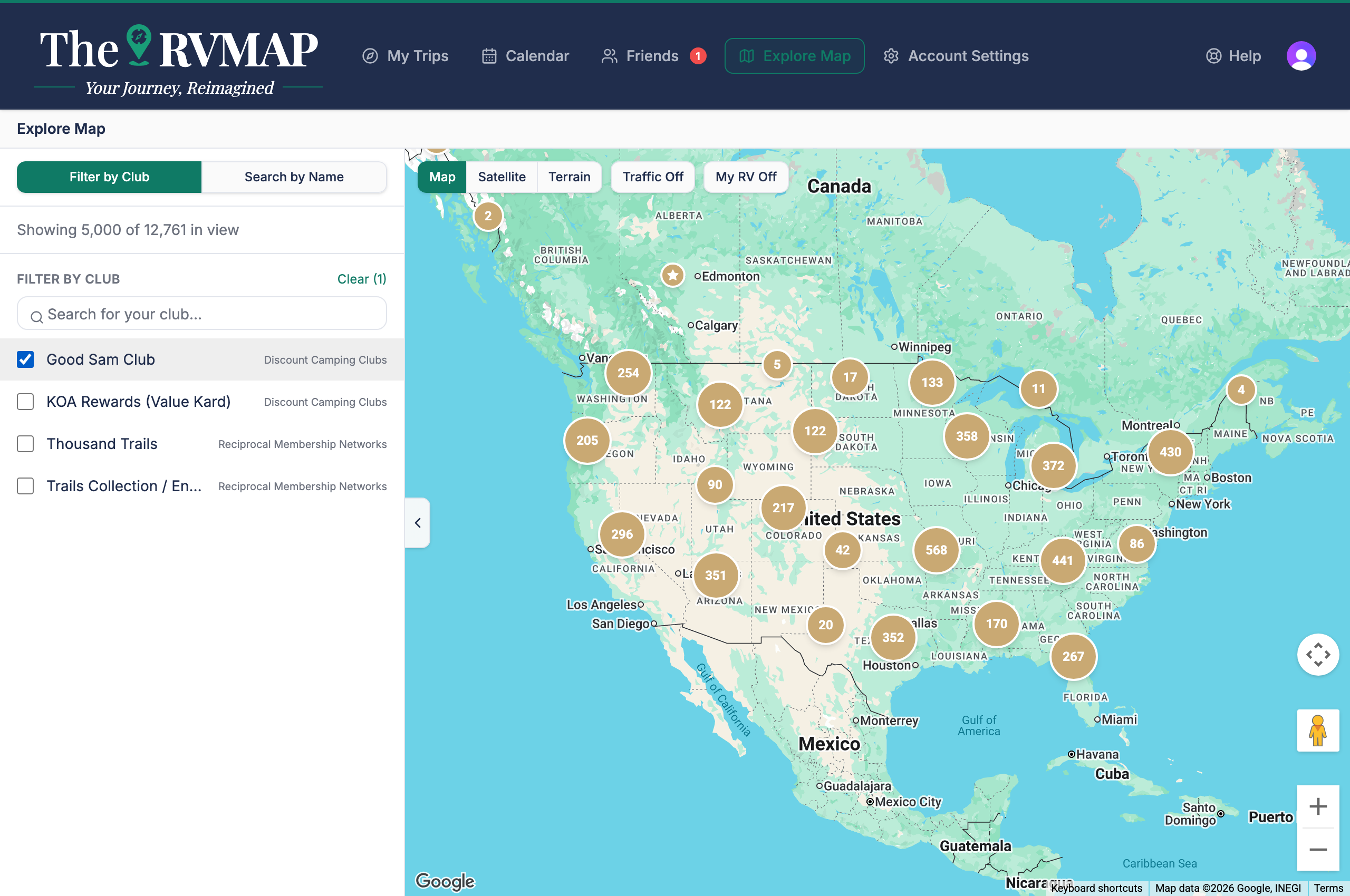
- Open Explore Map. A side panel gives you two modes: Filter by Club and Search by Name.
- To find one park, use Search by Name. The field reads "Search RV parks by name..." and prompts "Type to search across all RV parks by name." Results cap at 50, and the panel tells you so.
- To narrow by membership, use Filter by Club, with its own club search box and a Clear control.
- The panel shows the count as a number of parks, or "Showing N of total in view" when a lot is on screen.
- Switch the base map with Map, Satellite or Terrain.
Two controls are on the web only: the traffic toggle, and My RV, which drops a marker at your own last reported position.
Tapping a park pin gives a small preview card with View full details.
In the app
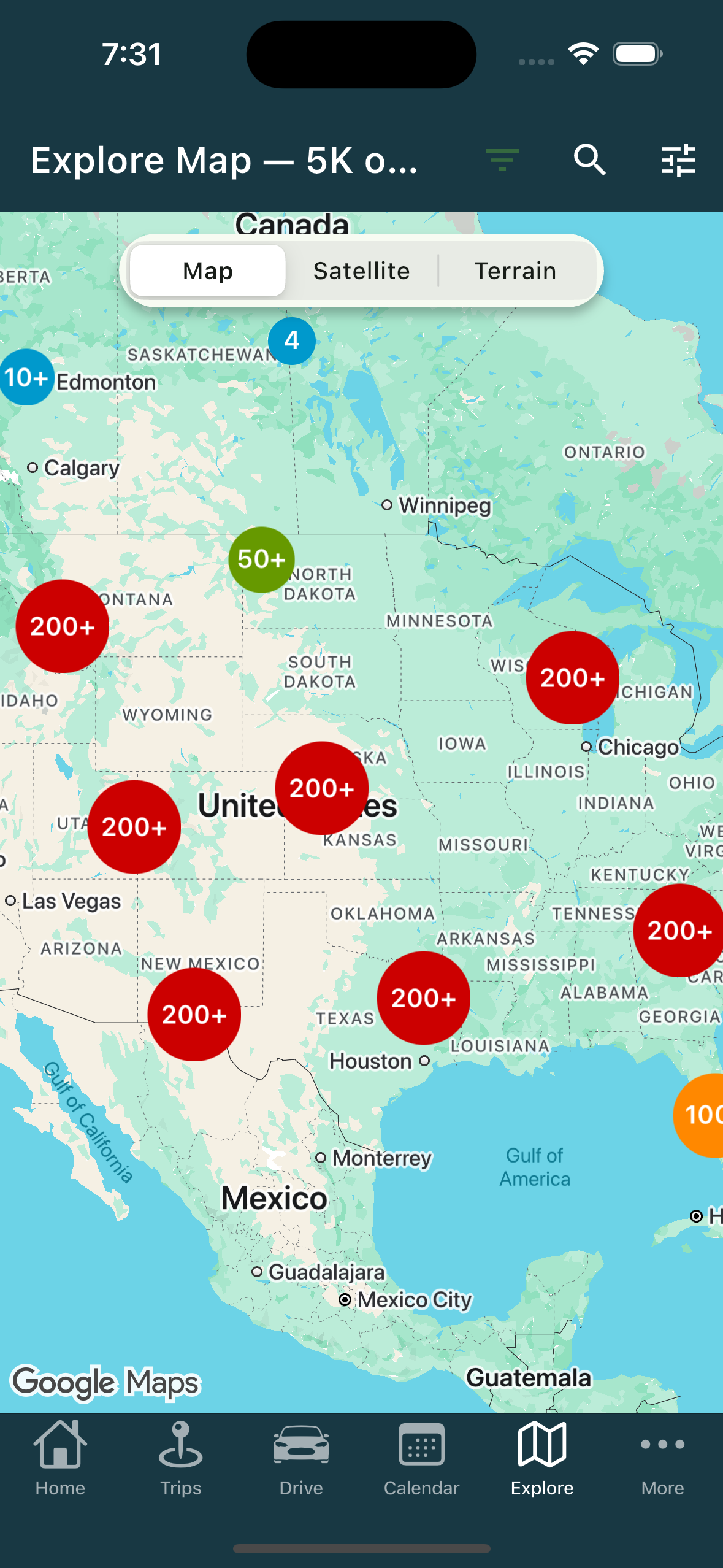
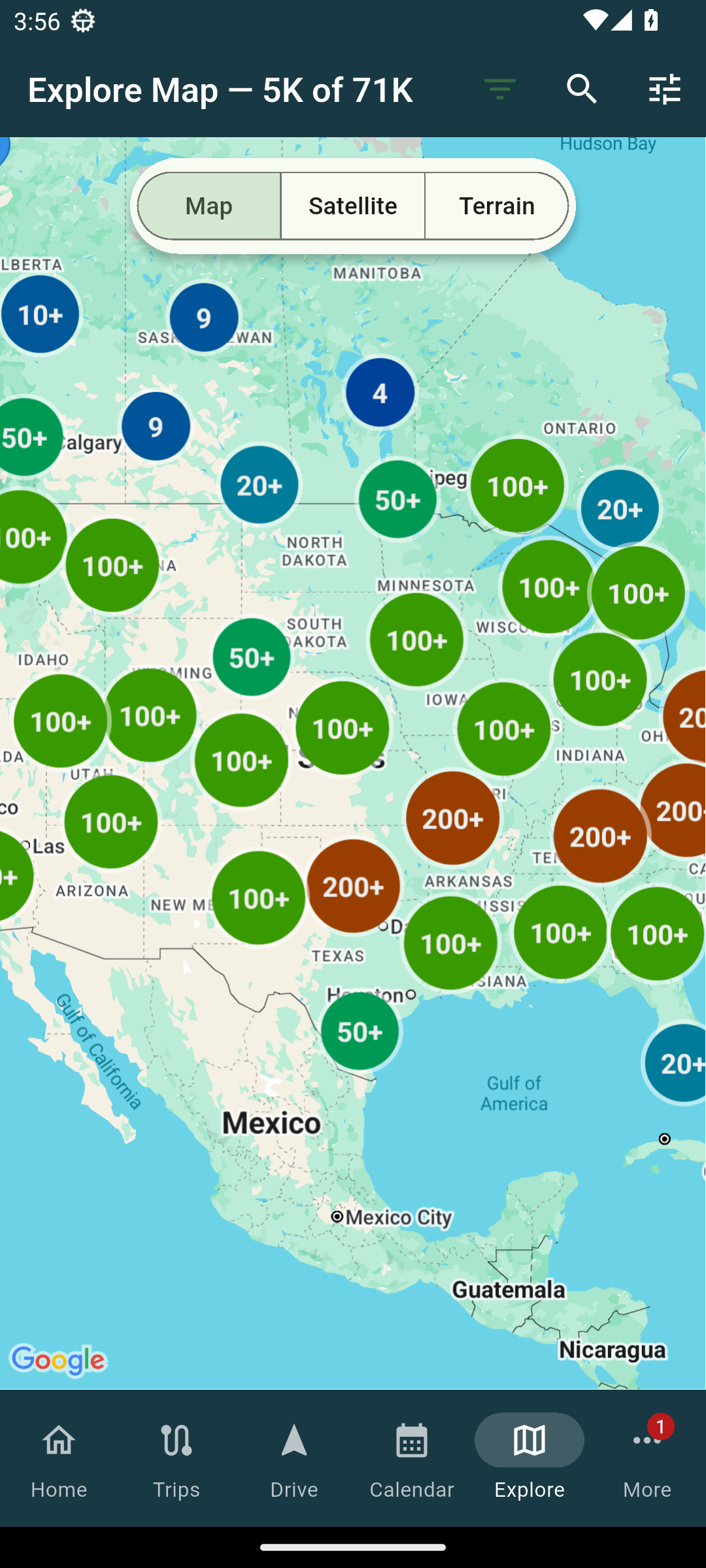
- Open Explore Map. The park count sits in the title bar, shortened, for example "Explore Map (5.3K parks)".
- The two search modes are icons in the toolbar rather than a side panel. One filters by club, one searches by name.
- The club filter opens a sheet whose button reads Show all parks or Apply with the count.
- Switch the base map with Map, Satellite or Terrain.
Tapping a park pin opens the full details in one tap, with no preview step.
Tapping something that isn't one of our parks
Tap a store or a fuel stop and you get our own card rather than the map provider's popup, with the link out to the map provider inside it. If we cannot resolve the place, a smaller card appears with just the name, the category, and a link to view it on the map provider.
Related
- What the pin colours mean
- Reading a park's details page
- Finding campgrounds and places along your route
- Adding and arranging stops
- Adding your club memberships
Was this article helpful?
That’s Great!
Thank you for your feedback
Sorry! We couldn't be helpful
Thank you for your feedback
Feedback sent
We appreciate your effort and will try to fix the article